
First Gridgram
A guided tour of the .gg language — one concept per section, with a rendered example next to each snippet. Read top to bottom and you'll have seen every construct you need for everyday diagrams.
Gridgram is a grid-based diagram generator. You describe a diagram with either a command-first .gg file or a TypeScript DiagramDef, and Gridgram renders it to SVG or PNG. Both paths share the same rendering pipeline; outputs are guaranteed identical.
Before you start, make sure the gg binary is on your PATH — see Quick start if you haven't installed it yet.
A minimal example
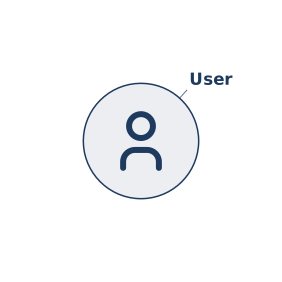
The diagram is a single icon — note that @pos is omitted. Gridgram auto-positions icons along row 0 in the order they're declared, so simple horizontal flows need no coordinates at all.
Two small shorthands
A couple of syntactic shortcuts show up on almost every line, so it's worth naming them up front:
"…"or'…'— label. A quoted string attached to anicon,region,note, or connector is the visible label. Both quote styles work the same; pick whichever avoids escaping inside the text.:user— id. The:sigil names a node so other statements can refer to it. You need an id only when something else points at the node — a connector (user --> api) or a note target (note [user] "…"). Without references, drop the:id; Gridgram auto-assigns an internal one.
icon :user tabler/user   "User"    # :user is the id; "User" is the label
icon :api  tabler/server "API"
user --> api "login"               # connector references the id
Built-in icons (Tabler)
The icon in the example above (tabler/user) comes from the built-in icon set. Gridgram ships Tabler icons — over 5,500 outline icons plus a large filled subset — and references them with the tabler/ namespace:
icon @A1 tabler/world        "Front"   # outline
icon @B1 tabler/filled/star  "Hot"     # filled
Browse and search the full set at https://tabler.io/icons — every name there (e.g. arrow-right, cloud-upload, database) works after the tabler/ prefix.
If a filled variant doesn't exist for a given name, the resolver flags the node as iconError and renders it with a red ring so the missing reference is visually obvious. (Tabler's outline set is much more comprehensive than its filled set.)
For your own assets (URL / file path / dataURL), register them via doc { icons: … } or gridgram.config.ts. See Icon for the full resolution rules.
Horizontal flow with auto-positioning
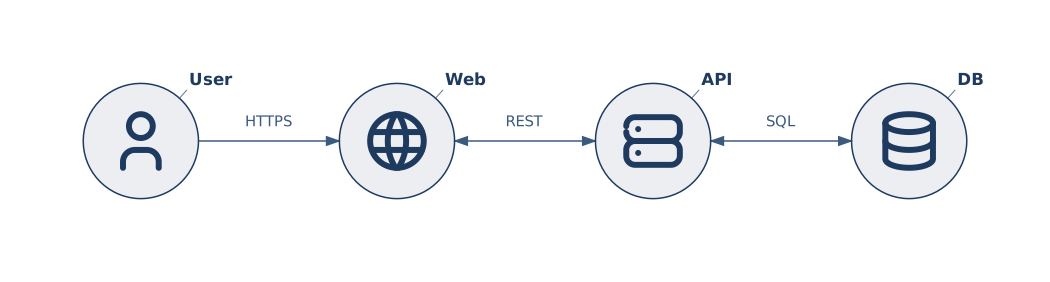
Same principle as the minimal example: every icon is placed automatically, columns increment from 0 across row 0. Connectors thread between them with the <id> <arrow> <id> shape.
Wrapping into rows
If you set cols on the doc but still omit @pos, auto-positioned icons wrap to the next row once the column count fills up:
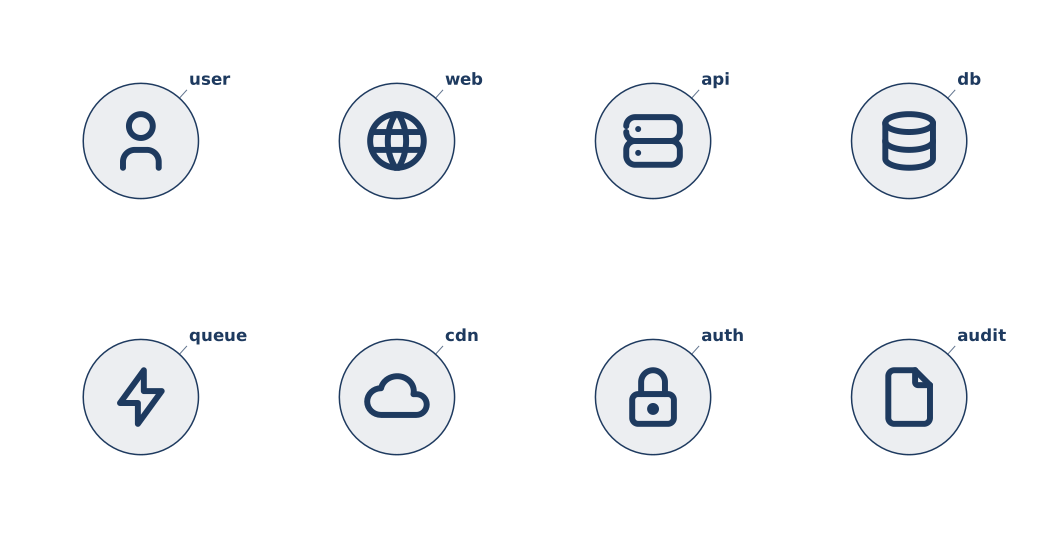
doc { cols: 4 }

icon tabler/user     "user"
icon tabler/world    "web"
icon tabler/server   "api"
icon tabler/database "db"
icon tabler/bolt     "queue"
icon tabler/cloud    "cdn"
icon tabler/lock     "auth"
icon tabler/file     "audit"
Eight icons, four columns → 2 rows. Mix explicit @pos with implicit ones freely; explicit positions don't advance the auto-counter.
Placing icons on a grid
When you outgrow a single row, write @col,row on each icon. The grid uses Excel-style (column, row) order — same as the A1 convention in spreadsheets. cols / rows are auto-inferred from the largest @col / @row you wrote, so for a 2×2 layout no doc { } block is needed at all:
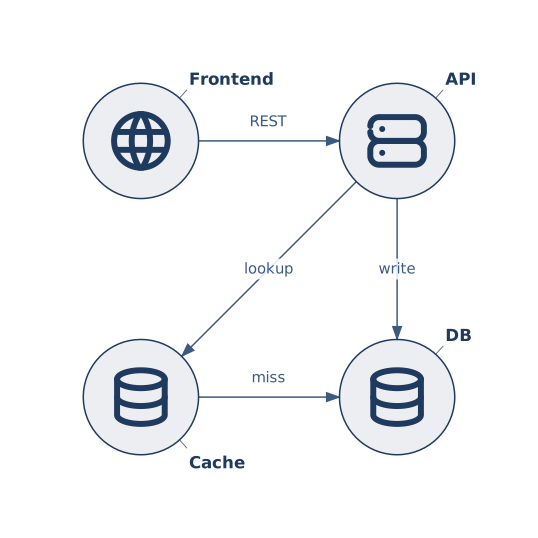
icon :front @A1 tabler/world    "Frontend"
icon :api   @B1 tabler/server   "API"
icon :cache @A2 tabler/database "Cache"
icon :db    @B2 tabler/database "DB"
If you do want to fix the grid explicitly (for instance to leave empty trailing cells, or to make the inferred size unambiguous), add a doc { cols: N, rows: M } statement. See the Document reference for an example with regions, theming, and an explicit grid.
Labels accept Unicode (CJK-friendly)
Every label is treated as UTF-8 text, so Japanese, Chinese, Korean, and other non-Latin scripts render exactly like Latin letters — no fonts to configure, no escaping.
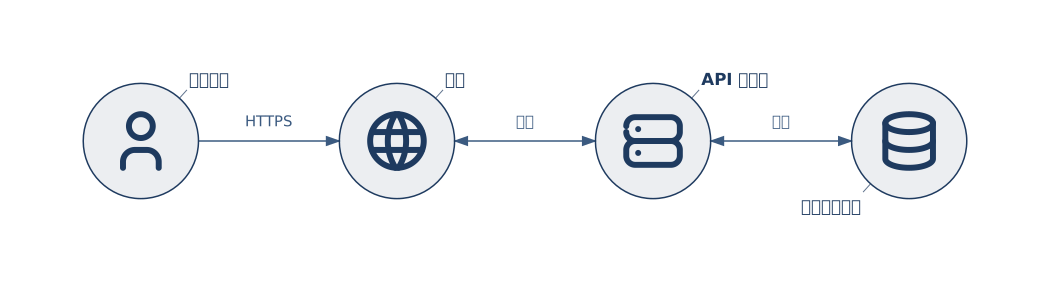
This also applies to connector labels, note text, and region titles. For mixed-script text ("API 伺服器"), Gridgram just hands the string to SVG <text> and lets the browser / rasterizer pick glyphs.